Accessibility Settings That Make Mobile Games More Comfortable
Text size, colour filters, reduced motion, haptics and in-game options: settings that help players with different needs, and often make games more comfortable for everyone.

Accessibility settings help players with different visual, hearing, motor and cognitive needs enjoy games. Many of them also make games more comfortable for everyone, such as larger text on a small screen or subtitles in a noisy place. Some settings live in your phone's system menus; others are inside individual games.
System-level settings
Both iPhone and Android include accessibility options that can affect games. Exact names vary by software version, but common options include:
| Need | Apple devices | Android devices |
|---|---|---|
| Larger text | Text size and bold text | Font size and display size |
| Colour vision | Colour filters | Colour correction |
| Motion sensitivity | Reduce motion | Remove animations |
| Hearing | Subtitles and captions, mono audio | Captions, mono audio |
| Motor | AssistiveTouch, touch accommodations | Accessibility menu, switch access |
Not every game respects system settings. Text size, for example, often affects menus but not the game screen itself.
In-game options to look for
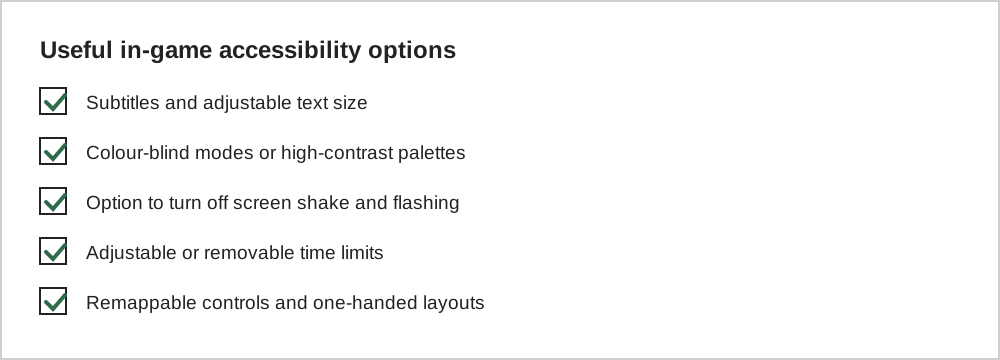
Games that include a dedicated accessibility menu often take these needs seriously. Store pages and game websites sometimes list accessibility features, which can help you choose.
Colour vision
Many games rely on colour to tell pieces or teams apart, which can be difficult for players with colour vision deficiency. Look for colour-blind modes, symbols as well as colours, or the system colour filters. Match-3 and puzzle games in particular vary widely in how well they handle this.
Motion and flashing
Screen shake, rapid camera movement and flashing effects can cause discomfort for some players. Reduce motion settings at the system level, and in-game options to disable shake or flashes, can help. If a game triggers headaches or nausea, take a break and look for these options before continuing.
Time pressure
Timers and fast reactions can make games inaccessible to players with motor or cognitive differences. Puzzle games and turn-based strategy games are often good choices because they let you take as long as you need. Some games offer relaxed or untimed modes.
Haptics and audio cues
Vibration feedback can help players notice events without relying on sound, and audio cues can help players who have difficulty seeing small details. Many games let you adjust or turn off each of these independently.
A quick accessibility check before you buy
Store pages rarely list accessibility features in detail, so screenshots, trailers and reviews are your best guides. Look for visible subtitle options, text size settings and any mention of colour-blind modes. Reviews from players who mention accessibility can be especially helpful.
For premium games, both major stores offer refund routes if a game is unusable, but policies differ and approval is not guaranteed. For free games, trying the opening minutes before investing time or money is the easiest test.
Controllers and alternative inputs
Many mobile games support Bluetooth controllers, which can be easier to use than touch controls for some players. iOS and Android also include switch control and voice control features that allow interaction without precise touches. Support varies by game, so check settings menus and developer support pages for controller compatibility.
Common questions
Do accessibility settings give an unfair advantage in multiplayer games?
Accessibility options are designed to remove barriers, not to give advantages. Settings such as larger text, colour-blind modes and subtitles help players read the game, and developers include them deliberately. Using them is entirely fair.
How can I find games with good accessibility?
Look for a dedicated accessibility section in a game's settings or on its website, and read reviews from accessibility-focused communities and organisations, which often evaluate games in detail. Store pages sometimes list supported features too.
What if a game lacks an option I need?
Contacting the developer with a specific, polite request can help. Many accessibility improvements in games began with player feedback, and developers often add options in updates.
The short version
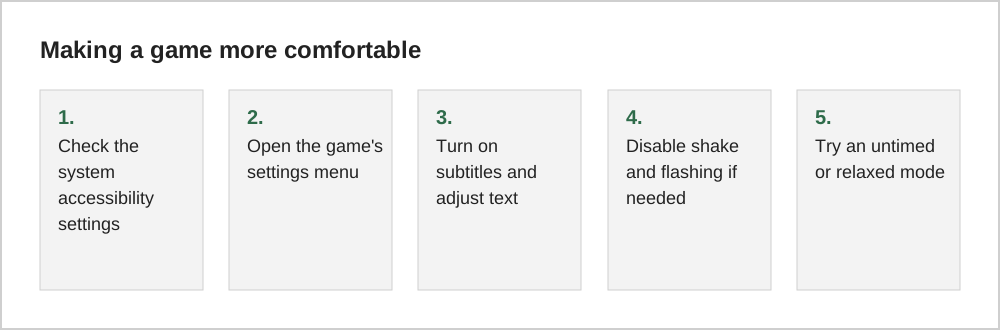
Check your phone's accessibility settings first, then explore each game's own options for text, colour, motion and timing. These settings help players with specific needs and often make games more comfortable for everyone. Our genre guide to word and logic puzzles highlights games that are naturally untimed.