Setting Up Parental Controls for Mobile Games on iPhone and Android
Purchase approvals, age-appropriate content and screen time limits: the built-in tools on Apple and Android devices, and how to set them up together with your child.

Both major mobile platforms include parental controls that can approve purchases, filter content by age rating and limit screen time. They are free, built into the system, and far more effective than trying to supervise every session. This guide gives an overview of what each platform offers and how to approach the setup. Menu names change between software versions, so use the platform's official help pages for exact steps.
What parental controls can do
| Goal | Apple devices | Android devices |
|---|---|---|
| Approve purchases | Ask to Buy (Family Sharing) | Purchase approvals (Google Family Link) |
| Block in-app purchases | Screen Time content and privacy restrictions | Play Store purchase authentication settings |
| Filter by age rating | Screen Time content restrictions | Play Store parental controls, Family Link |
| Limit play time | Screen Time app limits and downtime | Family Link daily limits and bedtime |
On Apple devices
Apple's tools are built around Family Sharing and Screen Time:
- Ask to Buy sends a request to a parent's device when a child tries to buy something, including in-app purchases.
- Screen Time can limit time on specific apps or categories and schedule downtime.
- Content and privacy restrictions in Screen Time can block in-app purchases entirely and limit apps by age rating.
On Android devices
On Android, the main tool is Google Family Link, which connects a child's account to a parent's:
- Approve or block app downloads and purchases.
- Set daily screen time limits and a device bedtime.
- Apply content filters for apps and games based on age ratings.
The Google Play Store also has its own settings to require authentication for purchases and to filter content by rating.
Set it up together
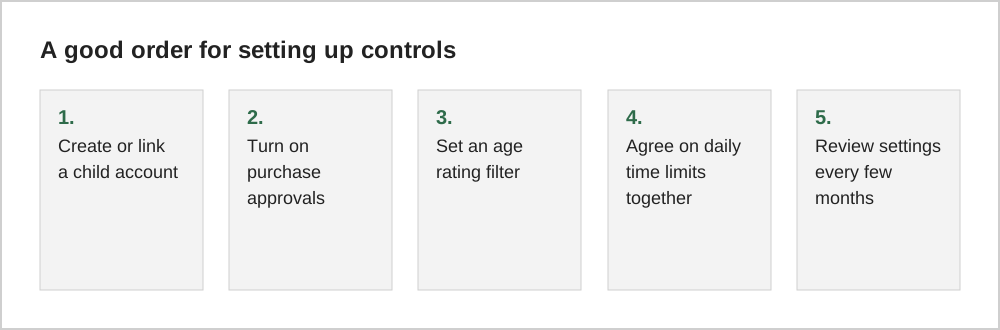
Parental controls work best when children understand them. Explaining why a limit exists, and agreeing on it together, makes it less likely to feel like a punishment. Older children in particular respond better when they have some say, such as choosing when their game time happens.
Online chat and strangers
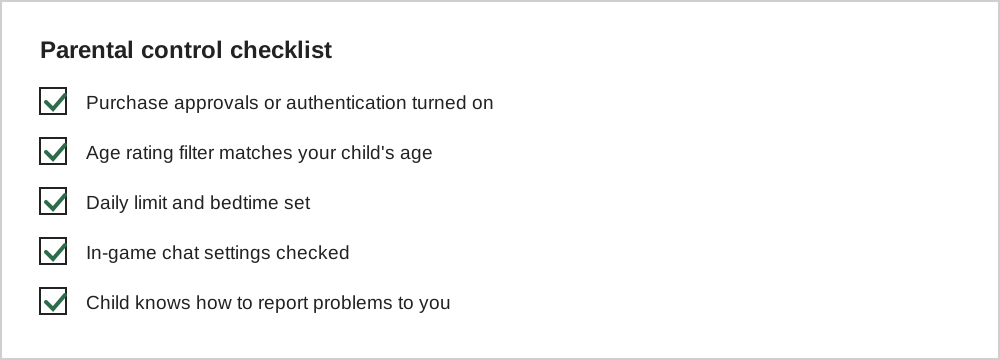
Many games include chat or friend systems. Check each game's own settings: many let you turn off chat, limit it to friends, or filter language. Encourage children to tell you if anyone online makes them uncomfortable, and make sure they know they will not get in trouble for telling you.
Review as children grow
Settings that suit a seven-year-old will feel restrictive for a thirteen-year-old. Revisiting them every few months, and gradually giving more responsibility, helps children learn to manage their own play. Our guides on age ratings and healthy play habits offer more context.
A sample setup for different ages
For a young child, many families require approval for every download and purchase, restrict apps to an age-appropriate rating and set a short daily time limit with downtime at bedtime. For a pre-teen, they might allow free downloads within a rating limit but keep purchase approval and evening downtime. For an older teenager, they may switch to occasional reviews of spending and screen time rather than strict limits.
These are only examples. The right setup depends on the child, and it works best when it is explained rather than imposed. Children who understand why a limit exists are more likely to respect it and to ask when they want it changed.
When controls stop working
Children sometimes find ways around controls, such as changing the time zone to reset timers or using a friend's device. Rather than adding ever more restrictions, treat it as a prompt for a conversation about trust and expectations. Controls are tools to support agreements, not replacements for them.
Common questions
Can children get around parental controls?
Determined older children sometimes find workarounds, which is one reason controls work best alongside open conversation. Keep your own parent passcode private, review settings occasionally, and talk about why the rules exist.
Should I use the same settings for every child?
Not necessarily. Age, maturity and individual needs vary, so settings for a younger child will usually be stricter. Most tools let you configure each child's account separately.
The short version
Both platforms provide free tools to approve purchases, filter content and limit time. Turn on purchase approvals first, add age filters and time limits, check in-game chat settings, and set everything up together with your child so the rules are understood rather than resented.