Freeing Up Storage for Mobile Games Without Losing Progress
Why games keep growing after you install them, how to see what is using space, and safe ways to free storage without deleting your saves.
Many games are much bigger than their store download size suggests. After installation, they often download additional content, and updates add more over time. If your phone regularly warns you about storage, games are a common cause, and there are several safe ways to reclaim space.
Why games grow
| Reason | What happens |
|---|---|
| Additional downloads | The game downloads extra art, audio or levels on first launch |
| Updates | New content adds to the total size |
| Cache | Temporary files build up over time |
| Offline content | Downloaded maps, cutscenes or language packs |
The size shown on the store page is often only the initial download. Check the game's actual size in your phone's storage settings after you have played for a while.
See what is using space
Both iPhone and Android show storage use per app in their settings. On iPhone, look under General, then iPhone Storage. On Android, look under Storage or Apps, depending on the device. Sort by size to find the biggest games.
Protect your progress first
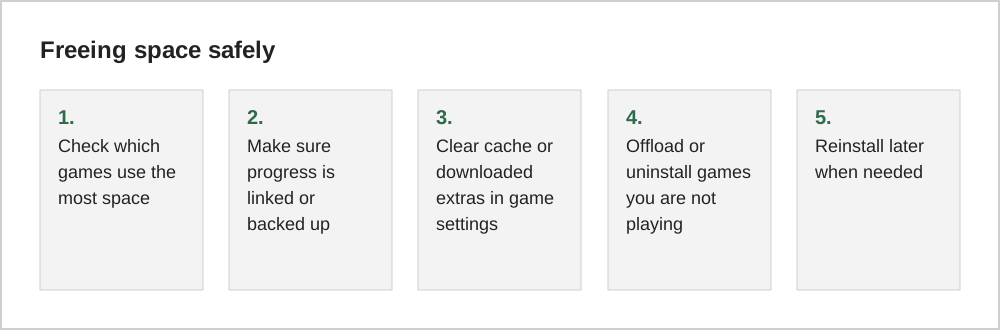
Before deleting or offloading any game, make sure your progress is safe. Many games save progress to an account, such as a game account, Apple Game Center or Google Play Games. Some only store progress on the device. Our guide on cloud saves and switching phones explains how to check.
Offloading versus deleting
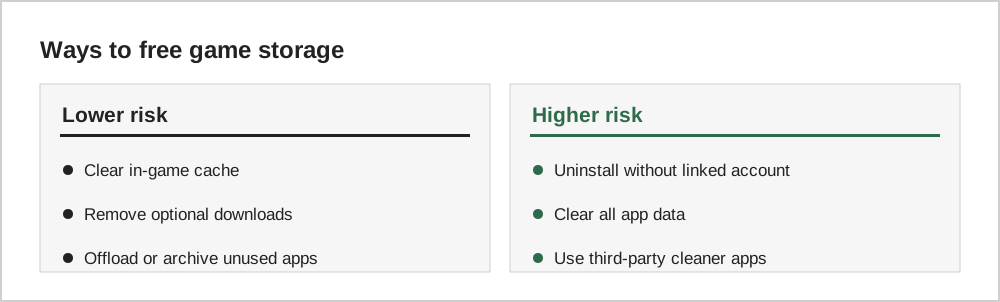
iPhone offers "Offload App", which removes the app but keeps its documents and data, so you can reinstall it later and continue. Android does not have an identical feature on every device, but some versions can archive apps you have not used recently, which removes most of the app while keeping data. Fully uninstalling an app usually removes its local data, so only do that if your progress is saved to an account.
Avoid aggressive cleaner apps
Third-party "cleaner" apps that promise to free space or speed up your phone are often unnecessary on modern devices, and some show aggressive ads or request broad permissions. Your phone's built-in storage tools are usually enough.
Plan for big updates
Large games may need extra free space to install updates, sometimes more than the update's own size, because files are unpacked during installation. Keeping a margin of free space avoids failed updates.
A monthly storage tidy
Once a month, open your phone's storage settings and sort apps by size. Games often appear near the top because of downloaded assets and caches. For each large game, ask whether you have played it in the last month. If not, consider offloading or deleting it after confirming your progress is saved to an account.
For games you play regularly, check their in-game settings for options to delete optional downloads, such as high-resolution textures or voice packs in languages you do not use. These options can free a surprising amount of space.
Why free space matters
Phones need free space to install updates and to run smoothly. When storage is nearly full, updates may fail, the camera may refuse to save photos and some apps can slow down. Keeping a modest amount of space free, a few gigabytes at least, avoids most of these problems and makes big game updates much less stressful.
Common questions
Why does a game need more free space than its update size?
During an update, the new files are usually downloaded and unpacked before the old ones are removed, so the phone briefly needs room for both. Keeping a few extra gigabytes free makes updates more reliable.
Is clearing a game's cache safe?
Clearing cache usually removes temporary files that the game can download again. It does not normally delete progress saved to an account. Clearing all app data or storage is different and can remove local progress, so link your account first.
Can I move games to a memory card?
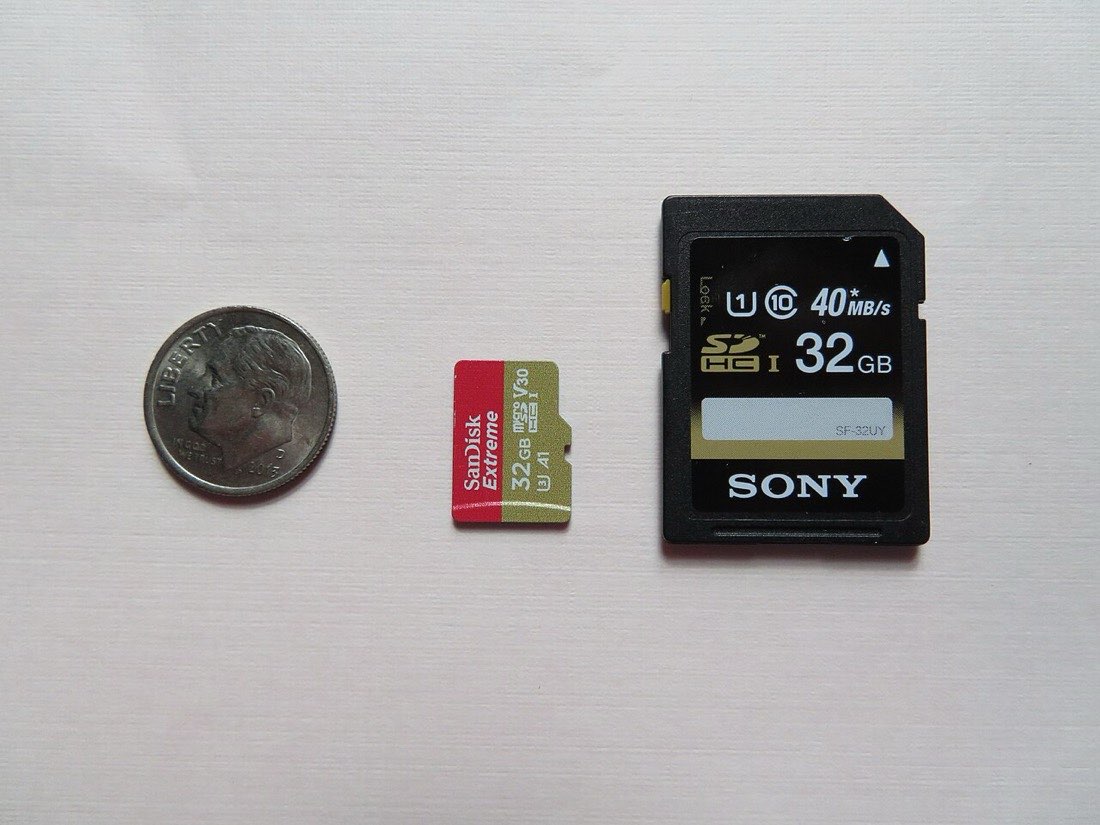
Some Android phones support memory cards and allow certain apps or data to be stored there, though support varies by device and game. iPhones do not support memory cards, so offloading is the main option there.
The short version
Games grow after installation through additional downloads, updates and cache. Check what uses space, make sure progress is linked to an account, then clear caches, remove optional content and offload games you are not playing. Keep some free space for future updates.